Microsoft Purview Features and Setup
The information and instructions in this document apply to the Microsoft Purview Governance Portal. To access this portal, go to the purview account in the Azure portal, and select “Open Microsoft Purview Governance Portal (new)” in the Overview tab. This testing was all done on an Enterprise tier Purview account, so it is unknown what parts of this document cannot be done in the Free tier.
Data Map
We will use Data Map to create a Domain in Purview that can be used to scan assets in the customer's Azure environment, which can then be searched through and assigned different levels of sensitivity labels to be used in Policy enforcement.
- On the left pane of the Purview portal, go to Solutions > Data Map
- Click New Domain (Preview) and enter the Display Name, Description (if desired), and Domain admins
- All AI team members should be added as admins. Despite the portal saying that groups cannot be searched for, you are able to search for groups and add them as admins. I don't know if adding groups will work for guest users, so the safest bet is to search for each team member by email and add them as admins individually
- In the new domain, select “+ New Collection” and fill in the information
- Once the domain and collection are created, select “Data sources” on the left pane
- In the Data sources screen, select “Register” and choose Azure [Multiple] for the data source
- Fill in the details needed for the Azure data source. The name can be left default or changed to something more identifiable. Select the resource group you would like to scan, and make sure All resource groups are selected. Select the domain created in the previous steps, and feel free to leave collection as Select domain only or select the specific collection. Then Register the data source
- Once the data source is registered, select “View details” on the data source block in the Data sources display and select “New scan”
- At the top of the New Scan window, there will be information about the managed identity of the Purview account. Select “Show more” to see the managed identity details. Return to the Azure portal and assign this managed identity the reader role over all subscriptions that you want to scan into Purview
- If the scans fail, it might be the case that the managed identity needs a specific reader role for each resource type. For example, if storage accounts fail the scan, you may need to assign the Storage Blob Data Reader role to the managed identity
- Back in the Scan window, ensure that all resource types are selected. Select Microsoft Purview MSI (system) for the credential. Ensure the Domain and Collection are correct, then select Test connection. If the managed identity has the role(s) it needs, then the connection should pass and allow you to continue with the scan
- Select the System Default scan ruleset. Determine the scan trigger (whether you want the scan to be recurring or a one-time scan). Once that is selected, continue, save and run the scan
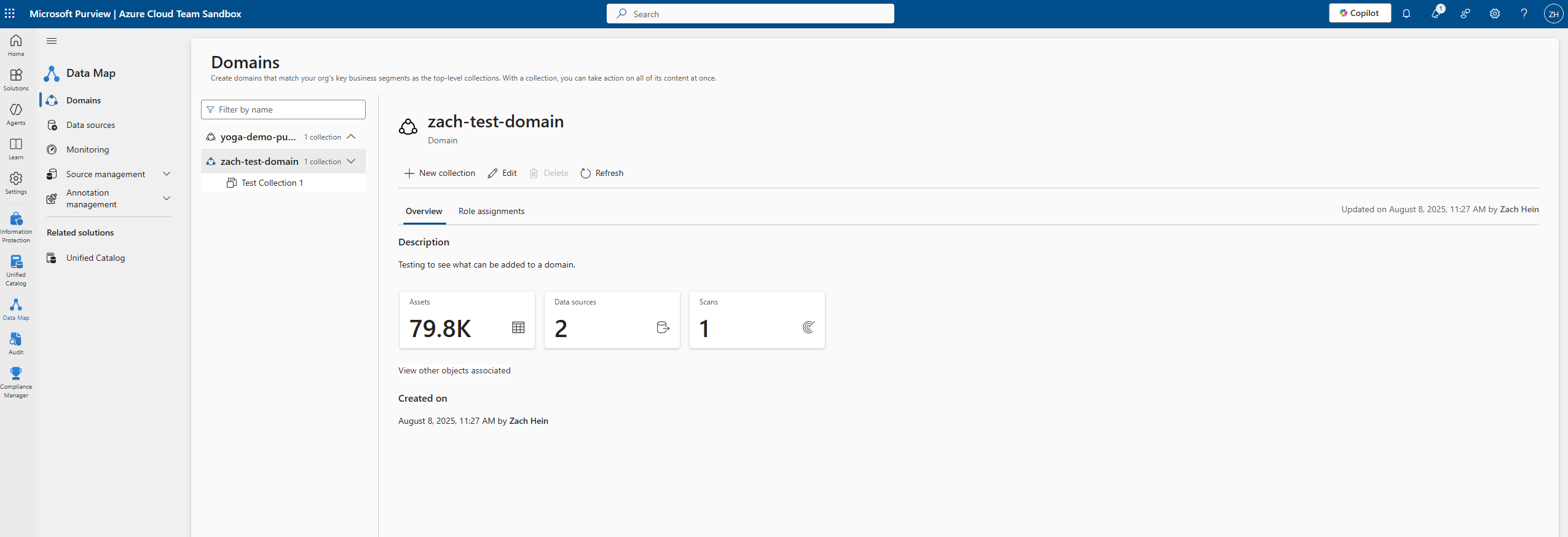
- Once the scan has been run, return to Domains in the left pane and select your domain. From here, you can select Assets to search through the resources that have been scanned, or you can select Scans to view the scans and see the run history. Scans can be run multiple times, so you can select a scan to see each run
- I was not able to get the permissions needed in my testing, but you should be able to run reports on the scanned resources by going to Solutions > Unified Catalog > Health Managements > Reports. I have not tested this, but allegedly we could try running some reports here to provide the customer for the scanned resources

Compliance Manager
Compliance Manager allows us to run assessments on a customer's environment for known compliance frameworks such as ISO 27018 and NIST 800-53. We can then use these assessments to review improvement actions that can improve the customer's compliance with these frameworks.
- In the Purview portal, go to Solutions > Compliance Manager. The Overview page here will give an Overall compliance score that can be filtered to Azure solutions. It wouldn't hurt for us to look through these in the customer's environment as a double-check, but in my review a lot of these recommendations are not applicable to Azure infrastructure despite being under the Azure solution category. I found it more beneficial to focus on specific assessments
- To create an assessment, select Assessments on the left pane and select “Add assessment”
- The assessments page may have a banner warning about needing additional regulation licenses. From my research and testing, there are certain “premium” assessments that are allowed to be used even without the licenses, such as the NIST 800-53 and ISO 27018. So we should be able to use this function to a degree without needing the customer to purchase licenses
- In the Add Assessment screen, click “select regulation” and filter Supported services to Azure. Select any assessments you wish to run and click Save
- For assessment group, use the Default Group. For Services, click “Select services”, select Azure and deselect everything else (unless we decide we want to see and review non-Azure recommendations as well)
- By default the assessment should run on all subscriptions. Update this if desired by selecting “Manage subscriptions”, then review and create the assessment
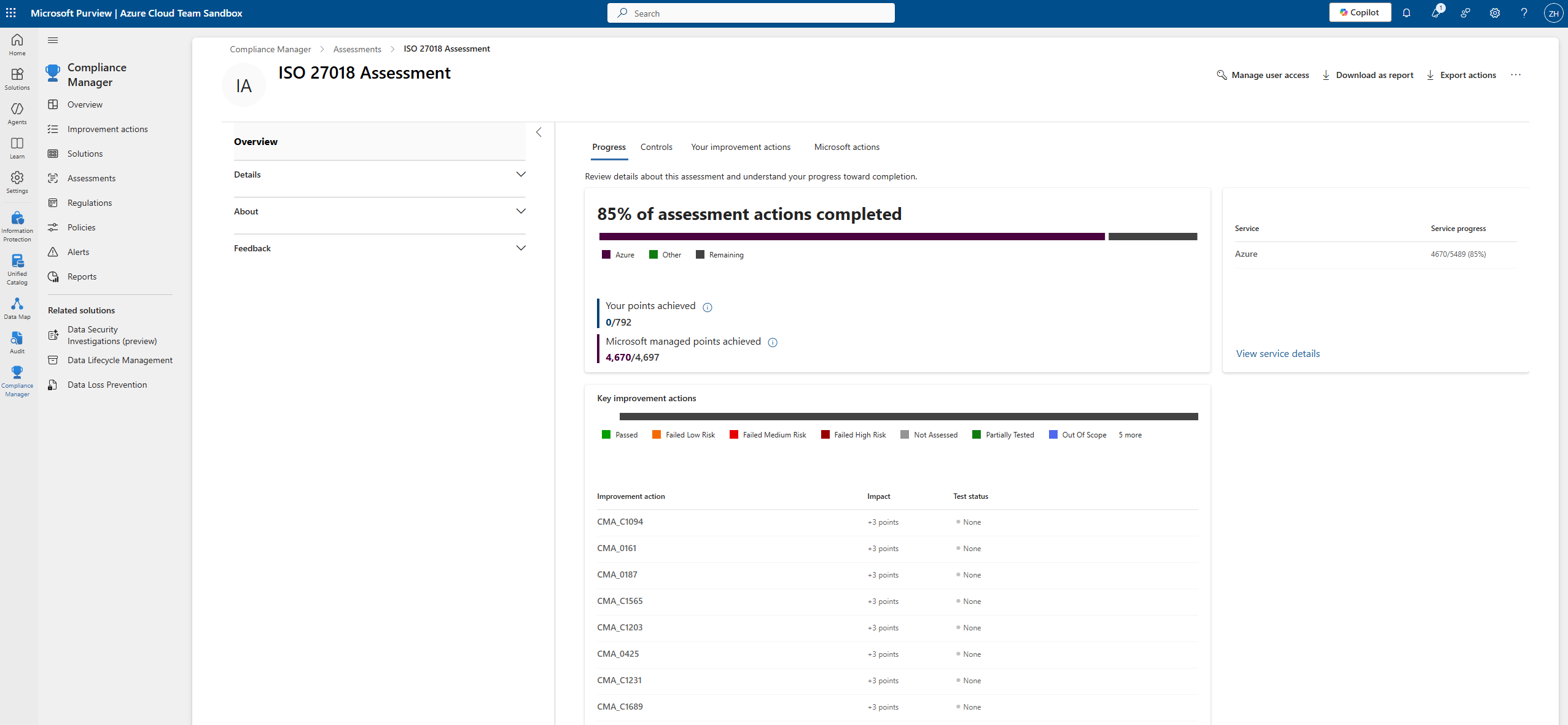
- Once the assessment finishes running, you can select it on the Assessments tab of Compliance Manager. When you select an assessment, you're brought to an overview page that shows you the % of assessment actions completed. From here you can view remaining improvement actions, the different controls it's assessing, and the Microsoft actions that are included in the assessment

| Date | Performer | Type(Initial/Change/Review) | Overview of change |
|---|---|---|---|
| 08/13/2025 | Zach Hein | Initial | Initial Document |
| xx/xx/xx | xxxxx xxxx | Change | Changed information on document review process |
| xx/xx/xx | xxxxx xxxx | Review | 6 month document review |