This is an old revision of the document!
Affirm — Power BI Report Generation SOP
Standard Operating Procedure for generating AI Health and AI Monitoring Performance reports from the Affirm Power BI tenant.
| Field | Value |
| Document Owner | MS Cloud AI team |
| Applies to | Affirm Power BI Tenant — Synergist Technologies, LLC |
| Version | 1.0 |
| Classification | Internal |
Table of Contents
1. Purpose
This Standard Operating Procedure (SOP) defines the end-to-end steps for generating, validating, and delivering Power BI reports for Affirm clients from the Affirm Power BI tenant. It covers two report templates published under the Synergist Technologies, LLC workspace:
AI Health Report — long-range health snapshots, trend analysis, and normalized scoring for AI assets.
AI Monitoring Performance Report — performance evaluation of AI assets across configurable evaluators and methods.
This document is intended to standardize the report generation process so that any qualified operator can produce consistent, accurate, audit-ready outputs without ad-hoc decisions.
2. Scope
Applies to all Power BI report generation performed against the Affirm tenant for internal or external Affirm clients.
Covers ad-hoc report generation triggered by client request, scheduled delivery cycles, or internal QA review.
3. Definitions & Glossary
| Term | Meaning |
| Tenant | A Microsoft 365 / Power BI organizational boundary. The Affirm tenant is accessed by switching from your default tenant to Synergist Technologies, LLC. |
| AI Asset | An AI/LLM-powered solution being monitored, e.g., CloudGenie - Chat, Jenkins AI Copilot, SOW Analyzer. |
| Evaluator | A metric family used to measure an AI asset (Hallucination, Groundedness, Prompt Relevance, Response Relevance, Readability, Latency, Throughput, Toxicity, etc.). |
| Method | The specific technique used by an evaluator: LLMaJ (LLM-as-Judge), FRES, SMOG, Fluency, Parallel, Sequential, etc. |
| Normalized Score | An evaluator score rescaled to a comparable 0–100 range for cross-metric reporting. |
| Trending Days | Lookback window (in days) used to compute the trend % shown on AI Health snapshots. |
| Snapshot | A single row of evaluator output for a specific date, asset, and method. |
4. Prerequisites
Before starting this procedure, confirm ALL of the following are in place. If any item is missing, stop and contact the Tenant Administrator.
Client / organization name (e.g., CDW Internal, CDW Corporation, Integration).
Reporting period (start and end date).
AI Asset(s) in scope (or “All”).
Evaluator(s) and Method(s) in scope (or “All”).
For AI Health Report only: Trending Days window and whether normalized scoring is required.
5. Procedure — Access the Affirm Power BI Tenant
This section is common to both reports. Complete steps 6.1 through 6.4 before moving to Section 7 or Section 8.
5.1 Navigate to the Power BI Workspace
-
Sign in with your corporate credentials if prompted. Complete MFA if required.
<note important>Important: If the link opens but reports are not visible, you are still in your default tenant. Continue to step 6.2 to switch tenants.</note>
5.2 Switch to the Affirm Tenant
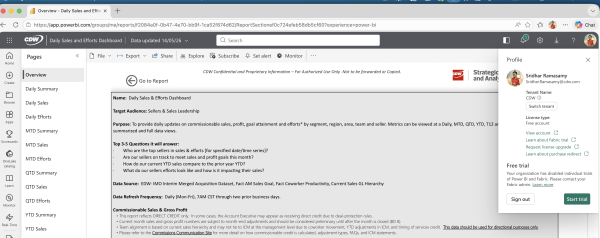
Click your profile picture in the top-right corner of Power BI.
In the profile flyout, click Switch tenant.
5.3 Select Synergist Technologies, LLC
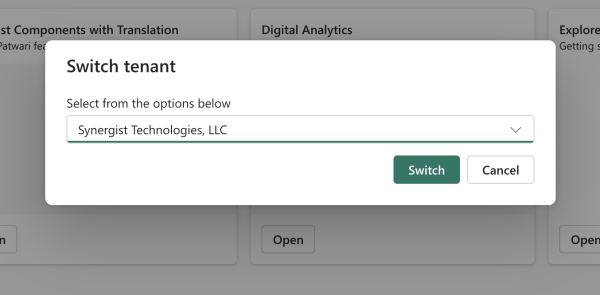
In the Switch tenant dialog, select Synergist Technologies, LLC from the dropdown.
Click Switch. The Power BI Home page reloads in the Affirm tenant context.
5.4 Confirm You Are in the Correct Tenant
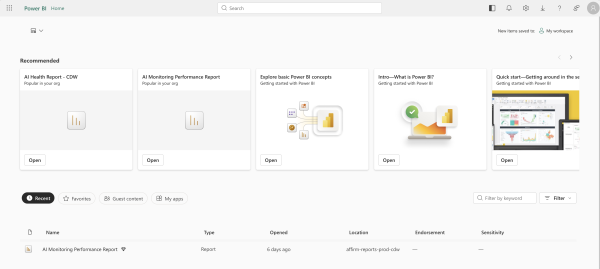
On the Home page you should see the following two reports listed under the Recommended section and in the Recent list:
<note>Both reports use the same filter pattern.
AI Health Report and AI Monitoring Performance Report share a near-identical filter pane: Organization Name, AI Asset Name, Evaluator Name, Method Name, and a Date / Date Range filter. Mastering the filter pane once applies to both reports. The differences are summarized in Section 7 (performance) and Section 8 (health).</note>
Use this report to evaluate the performance of one or more AI assets across selected evaluators and methods, over a specific reporting period.
6.1 Open the Report
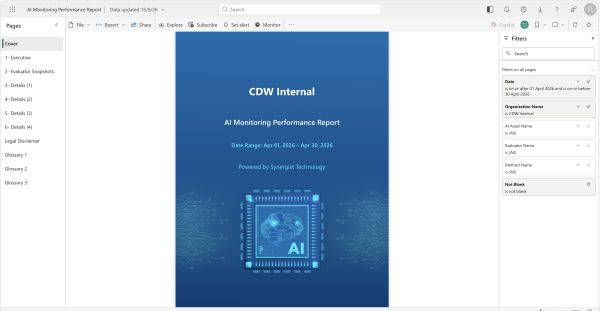
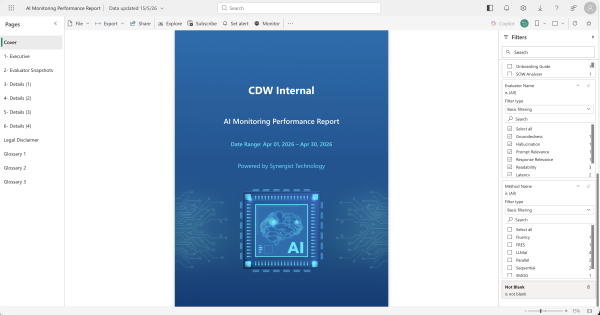
From the Power BI Home page (after Section 6), click AI Monitoring Performance Report under Recommended or Recent.
The report opens on the Cover page with the Filters pane on the right.
6.2 Apply the Date Filter
The Date filter controls the reporting window. Power BI offers four filter types; pick the one that best fits the request.
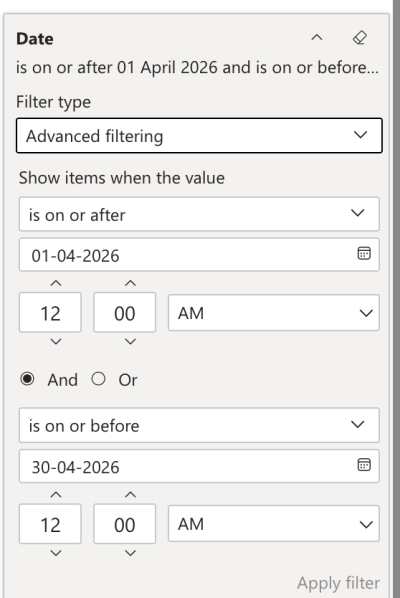
6.2.1 Filter Type — Advanced Filtering
Use when the requestor provides explicit start and end dates.
In the Filters pane, expand Date.
Set Filter type to Advanced filtering.
Configure Show items when the value (top condition). Operators available: is, is not, is after, is on or after, is before, is on or before, is blank, is not blank.
Choose And to combine with a second condition (typically is on or before for the end date).
Click Apply filter.
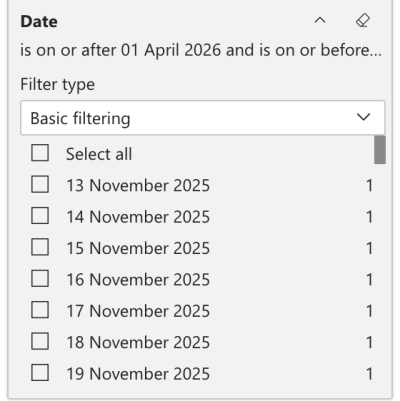
6.2.2 Filter Type — Basic Filtering
Use when the requestor needs to cherry-pick specific calendar dates.
Set Filter type to Basic filtering.
Tick the individual dates required. Use Select all to include every date in the dataset.
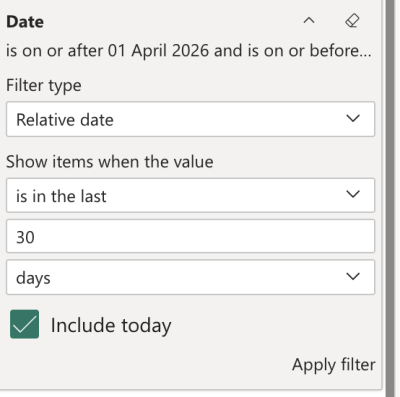
6.2.3 Filter Type — Relative Date
Use for rolling windows that should auto-shift each time the report is regenerated.
Set Filter type to Relative date.
Choose the operator: is in the last, is in this, or is in the next.
Enter the numeric value (e.g., 30).
Choose the unit: days, weeks, months, years, calendar months, or calendar years.
Tick Include today if the current day must be included.
Click Apply filter.
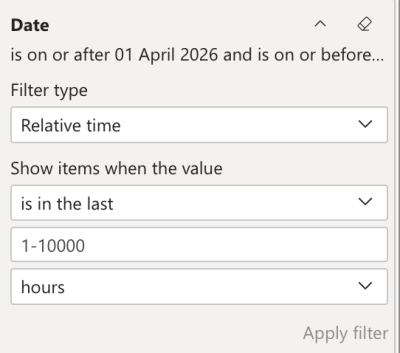
6.2.4 Filter Type — Relative Time
Use only for intra-day reports. Resolution is hours or minutes.
Set Filter type to Relative time.
Choose the operator: is in the last, is in this, or is in the next.
Enter the numeric value (1 to 10000).
Choose the unit: hours or minutes.
Click Apply filter.
<note warning>Date filter caveat: Mixing filter types on the same field is not supported in a single render. If you switch from Advanced to Basic, the previous values are cleared. Confirm the date range with the requestor before switching.</note>
6.3 Apply the Organization Name Filter
The Organization Name identifies the client whose data is being reported. The document uses “CDW Internal” as the example client.
Expand Organization Name in the Filters pane.
Tick the single organization in scope. Untick any others.
If “(Blank)” is shown, leave it unchecked unless the requestor explicitly asks for it.
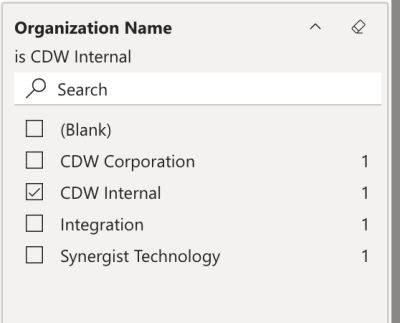
<note warning>Always confirm exactly one organization is selected. Selecting multiple organizations will mix client data into the same report. This is a data-confidentiality violation. Reviewer must verify in Section 10.</note>
6.4 Apply the AI Asset Name Filter
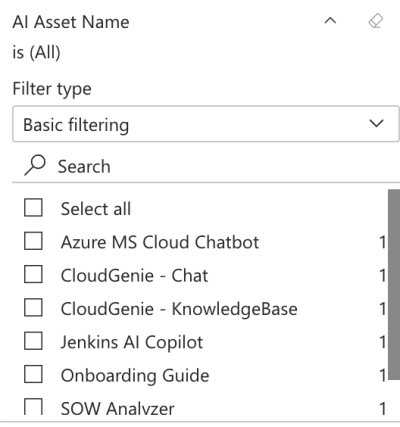
Select the AI Assets in scope. The report renders separate views per asset selected.
Expand AI Asset Name and set Filter type to Basic filtering.
Tick the assets in scope, or use Select all. Available assets include Azure MS Cloud Chatbot, CloudGenie - Chat, CloudGenie - KnowledgeBase, Jenkins AI Copilot, Onboarding Guide, SOW Analyzer, etc.
6.5 Apply the Evaluator Name Filter
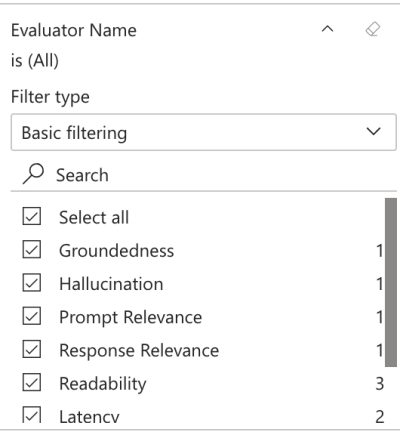
Choose which evaluators (metric families) should appear in the report.
Expand Evaluator Name and set Filter type to Basic filtering.
Tick the evaluators in scope, or use Select all. Typical evaluators: Groundedness, Hallucination, Prompt Relevance, Response Relevance, Readability, Latency.
6.6 Apply the Method Name Filter
Each evaluator can be computed by one or more methods. For example, Readability supports FRES and SMOG.
Expand Method Name and set Filter type to Basic filtering.
Tick the methods in scope, or use Select all. Available methods include Fluency, FRES, LLMaJ, Parallel, Sequential, SMOG.
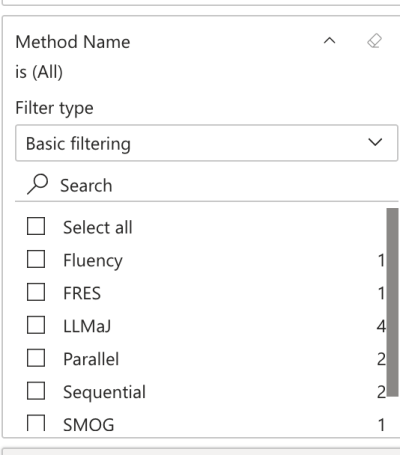
<note>Method–Evaluator pairing: Some methods only apply to specific evaluators (e.g., FRES and SMOG only apply to Readability). Selecting an irrelevant method has no effect on the report but adds clutter to the filter audit trail. Pick only the methods aligned to the chosen evaluators.</note>
6.7 Review the Rendered Report
Wait for all visuals on every report page to finish rendering. The status bar should display Updated.
Navigate through the pages in the left-hand Pages pane: Cover, 1- Executive, 2- Evaluator Snapshots, 3- Details (1) … 6- Details (4), Legal Disclaimer, Glossary 1–3.
Visually confirm: (a) date range in the cover matches the requested window, (b) organization name is correct, © selected evaluators and methods appear on the details pages.
6.8 Export the Report
Click the download / export icon in the top toolbar (highlighted in red in Figure 13 below).
Choose the requested format: PDF (recommended for client delivery), PowerPoint, or Excel data.
Wait for the export job to finish. Power BI shows a notification with a download link.
Save the file using the naming convention defined in Section 9.
7. Procedure — Generate AI Health Report
The AI Health Report shares the Organization / AI Asset / Evaluator / Date filter pattern with the Performance Report, plus two additional filters specific to health monitoring: Trending Days and is_normalized.
7.1 Open the Report
From the Power BI Home page (after Section 6), click AI Health Report - CDW.
The report opens on the Cover page with the Filters pane on the right.
7.2 Apply Common Filters
Apply the following filters in order, using the same procedures as for the AI Monitoring Performance Report:
Organization (or Organization(s)) — see Section 6.3.
AI Asset (or AI Asset(s)) — see Section 6.4.
Evaluators — see Section 6.5.
Report Date Range — see Section 6.2 (use Advanced or Relative date as appropriate).
7.3 Set Trending Days
Trending Days defines the lookback window used to compute the Trend % column shown in the AI Health Snapshots table. The default value is 0.
Expand Trending Days in the Filters pane.
Set Filter type to Advanced filtering.
Set Show items when the value to is, then enter the desired number of days (e.g., 7, 14, 30).
Leave the And/Or row empty unless a second condition is required.
Click Apply filter.
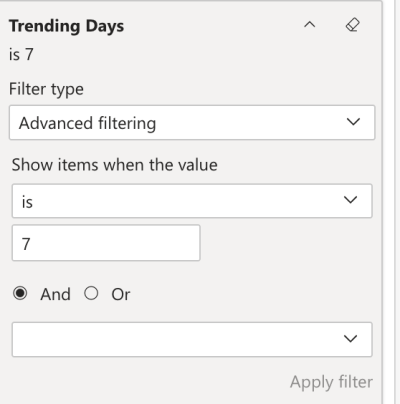
<note>Choosing Trending Days: Pick a window proportional to the report's date range and the volatility of the metric. 7 days suits high-volume daily monitoring; 30 days suits low-volume monthly review. Avoid windows longer than the date range itself — the trend will be meaningless.</note>
7.4 Set is_normalized
is_normalized determines whether the Actual Normalized Score column on the AI Health Snapshots page uses normalized values.
Expand is_normalized in the Filters pane.
Tick True to show normalized scores, False to show raw scores, or both for comparison.
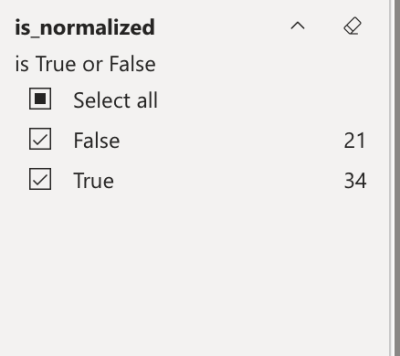
<note>When to use normalized scores: Use normalized scores (True) when comparing different evaluators or metrics that have different native scales (e.g., comparing Latency in milliseconds against Readability scores). Use raw scores (False) when the requestor needs the original measurement values.</note>
7.5 Review the AI Health Snapshots Table
Navigate to the 2- AI Health Snapshots page. The table shows one row per Evaluator × Method × Data Type combination.
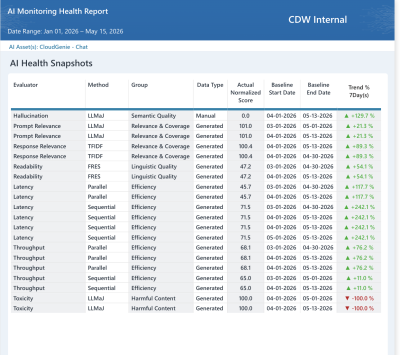
Columns to verify:
Evaluator and Method — match the filters applied.
Group — semantic grouping (e.g., Semantic Quality, Relevance & Coverage, Linguistic Quality, Efficiency, Harmful Content).
Data Type — Manual or Generated.
Actual Normalized Score — the score for the period (highlighted in Figure 16).
Baseline Start Date / Baseline End Date — the reference window for trend computation.
Trend % (N Day(s)) — directional change vs. baseline. Green up-arrow indicates improvement; red down-arrow indicates degradation.
7.6 Review the Cover and Evaluator Group Pages
Confirm the Cover page shows the correct Date Range, Organization, and AI Asset(s).
Page through 3- Evaluator_Group 1 to 17- Evaluator_Group 15 to verify each evaluator group renders without errors.
 Figure 17. AI Health Report — Cover page with full filter pane (Organization, AI Asset, Evaluators, Report Date Range, Trending Days, is_normalized).
7.7 Export the Report
Follow the same export procedure as Section 6.8. PDF is the default delivery format unless the requestor specifies otherwise.
8. Recommended Practices & Tips
Always clear all filters (using the eraser icon at the top of the Filters pane) before starting a new client's report. Stale filters from a previous session are the #1 source of mis-delivered reports.
Apply filters in the order listed in this SOP — Date → Organization → AI Asset → Evaluator → Method — to minimize report re-renders and to keep an auditable trail.
Take a screenshot of the Filters pane before exporting. Attach it to the request ticket as evidence of the filter set used.
If the requestor is unclear about Evaluator or Method, default to Select all and discuss the resulting report with them, rather than guessing.
Lock the date range with explicit start/end dates when delivering to a client. Avoid Relative date for client deliverables — relative filters produce different numbers on re-run.
Use Relative date for internal recurring monitoring views where the most recent data is wanted on each open.
Run the report twice in two browser windows when verifying parity (e.g., comparing two date ranges). Use Edge in one window and Chrome in another to detect any browser-specific rendering issues.
Document any filter combination that produces unexpected results and escalate to Data Engineering with a screenshot and the exact filter set.
Never share screenshots or exported reports outside the agreed delivery channel. Both reports contain client-confidential AI performance data.
13. Revision History
| Version | Date | Author | Changes |
| 1.0 | Prior to 2026 | Reporting Ops | Initial draft of the Affirm Power BI report generation procedure. |
| 2.0 | 15 May 2026 | Reporting Ops (Enhanced) | Restructured as a full SOP: added Purpose, Scope, Roles, Definitions, Prerequisites, Validation Checklist, Troubleshooting, and Recommended Practices. Re-illustrated using existing screenshots. |
Powered by Synergist Technology • Internal


 Figure 17. AI Health Report — Cover page with full filter pane (Organization, AI Asset, Evaluators, Report Date Range, Trending Days, is_normalized).


